Sometimes the data you have isn't as clean as you'd like. When it's time to relate two tables, there's no single column that tells Power BI which row is which. You can't set up a Power BI relationship on multiple columns directly, because each relationship links one column to one column. The fix is to combine those columns into one key column in both tables, then relate the tables on that.
In this post I'll build that key in Power Query for a sales order table and a warehouse item table, and clear the "duplicate value" error Power BI shows when you try to relate them on product alone. If you haven't related two tables before, start with how to combine tables in Power BI.
Why one column isn't always enough
This comes up all the time with ERP data. Take a system with several legal entities, where each company has its own products. Two companies can even use the same product number for completely different items.
If your sales order lines only carry the product number, Power BI can't tell which company's product a line refers to, so the description or cost it pulls back could be the wrong one. Adding the company to the key on both sides does two things. It makes each key unique, so the relationship works, and it keeps each company's products apart.
A key built from more than one column like this is usually called a composite key. You'll also hear it called a surrogate key, though that term more often means a generated ID number.
The example data
My sample data has warehouse-specific item information. In the item_warehouse table, the same product, P001, shows up three times: once each for warehouses WH-MAD, WH-RNO and WH-ALN.
There are two reasons for that. The product can ship from any of three locations, and each warehouse carries its own standard cost (5,820, 6,023.70 and 5,965.50 for P001). To calculate margin on a sales order line, I need the standard cost from the warehouse that line ships from, not just any row for that product.
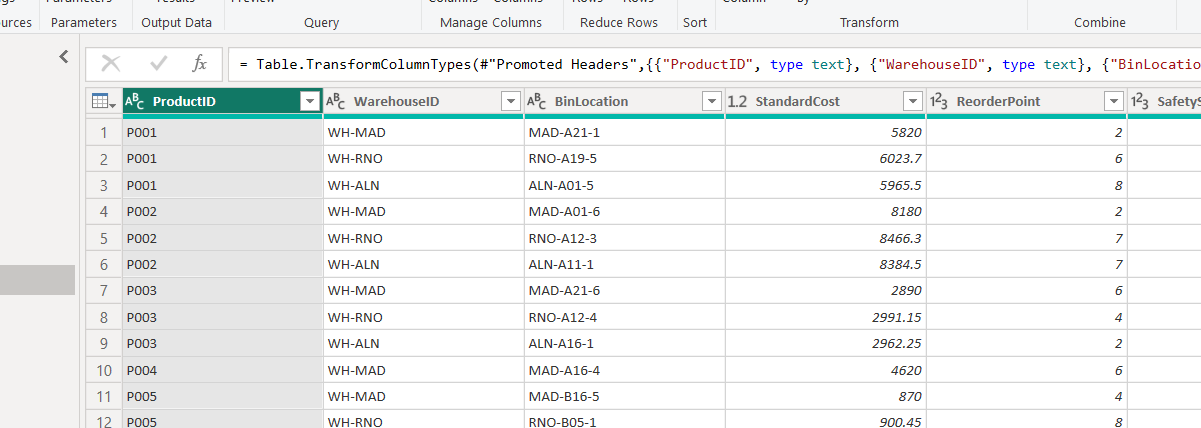
The sales_order_lines table has both of the columns I need, ProductID and WarehouseID.

The error you get when you relate on one column
If I try to create a new relationship between sales_order_lines and item_warehouse on ProductID alone, Power BI won't save it. The error reads: "Column '' in Table '' contains a duplicate value 'P001' and this is not allowed for columns on the one side of a many-to-one relationship or for columns that are used as the primary key of a table."
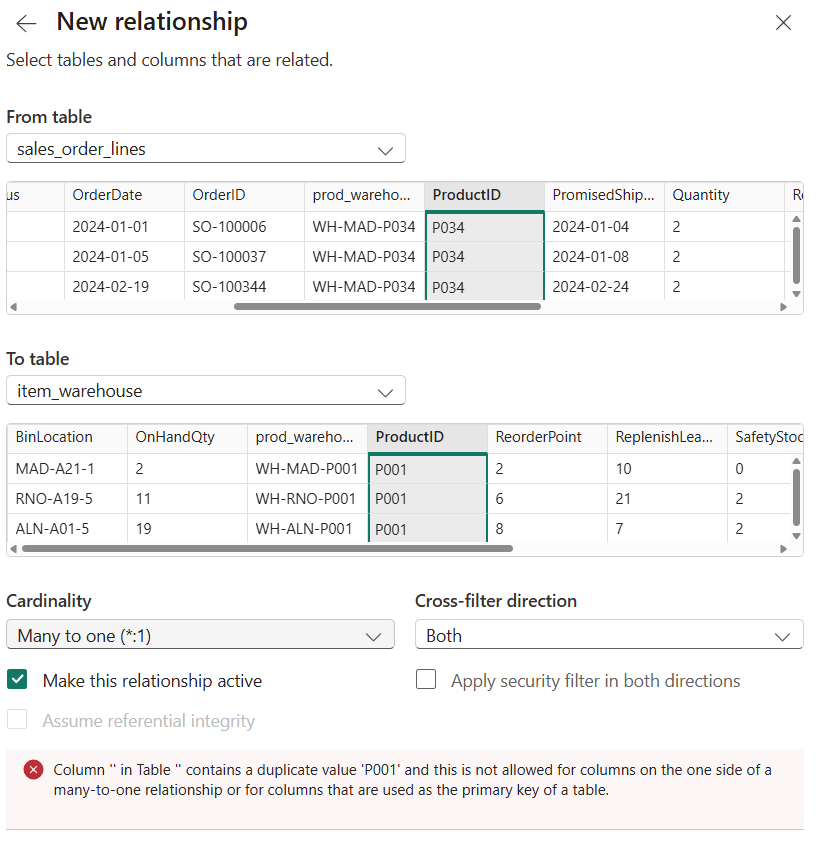
That makes sense. Power BI sees three P001 rows on the item_warehouse side and has no way to know which one I want when it looks up standard cost or on-hand quantity. It needs the warehouse too.
Step 1: Add a composite key column in Power Query
On the Home tab, click "Transform data" to open Power Query. Select the sales_order_lines table, go to the Add Column tab and click "Custom Column." Name the new column prod_warehouse_key, enter this formula and click OK:
= [WarehouseID] & "-" & [ProductID]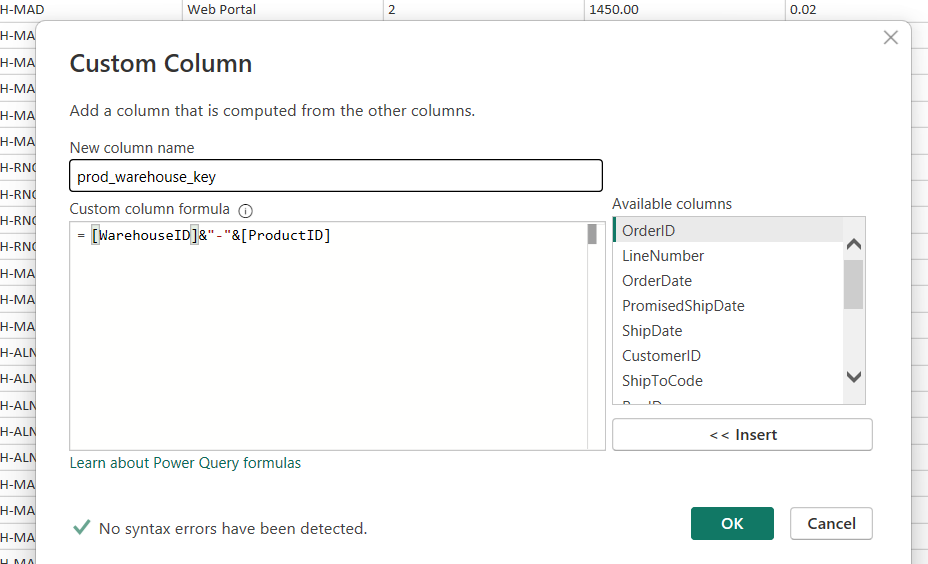
In Power Query you join text with an ampersand (&). This formula takes the warehouse, adds a dash, then adds the product ID, so warehouse WH-MAD and product P034 become WH-MAD-P034.
The dash isn't just for looks. Without a separator, two different pairs can produce the same key: A1 plus 23 and A12 plus 3 both give A123. Pick a character that never shows up in either column. Both columns also need to be text. If one is a number, wrap it in Text.From(), like Text.From([CompanyID]).
Step 2: Add the same key to the other table
Now repeat the same steps on item_warehouse, with the same column name and the same formula. Keep the columns in the same order in both formulas, or the keys won't line up.
Before you leave Power Query, check that the key really is unique on the item_warehouse side. Select prod_warehouse_key, then on the Home tab choose Keep Rows > Keep Duplicates. If the table comes back empty, every key is unique. Delete that step from Applied Steps when you're done.
Watch for blank warehouses on the order side too. If a sales line has no warehouse yet, its key comes out empty and won't match anything, so that line's cost will be blank.
Step 3: Close and apply, then create the relationship
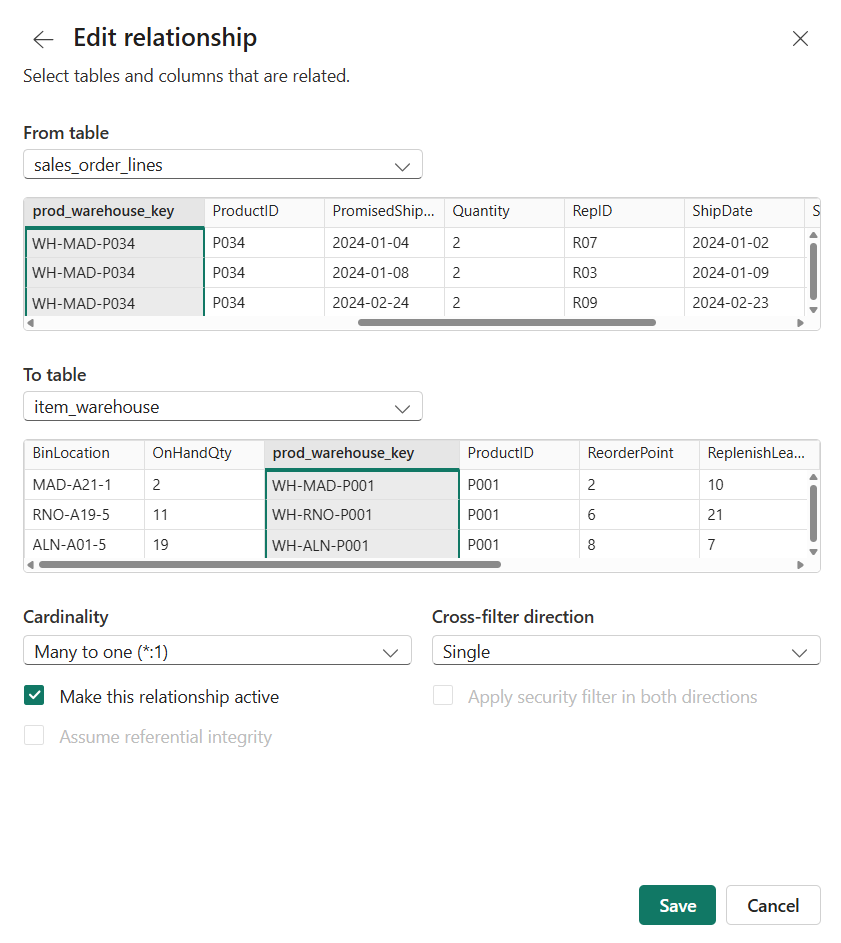
Click "Close & Apply" on the Home tab. Since I named both new columns the same thing, Power BI tries to create the relationship for me. Check it either way in Modeling > Manage relationships, and if it isn't there, click "New relationship" and pick prod_warehouse_key in both tables.
Earlier, relating on ProductID gave me the duplicate value error. With prod_warehouse_key on both sides and Many to one (*:1) cardinality selected, the error is gone, because each key appears only once in item_warehouse. I left cross-filter direction on Single.
Other ways to relate tables on more than one column
The Power Query key above is where I'd start. Search for this problem, though, and you'll run into a few other approaches.
- DAX calculated column: Same idea, built in the model instead of Power Query, using the & operator or the COMBINEVALUES function. It works, but doing it in Power Query keeps all your data prep in one place, which is easier to follow later.
- Merge queries on two columns: In Power Query's Merge dialog you can Ctrl+click two columns in each table to match on both. That copies the columns you need, like standard cost, onto the order lines. It's fine for one or two lookups, but you give up the separate item table and everything else it could answer.
- DirectQuery models: Microsoft documents one exception to the one-column rule. In DirectQuery, you can build the key on both sides with COMBINEVALUES and Power BI can turn the relationship into a join on the underlying columns. If you're not sure which mode you're in, see DirectQuery vs Import.
Where to go from here
With the relationship in place, the margin calculation is possible. A measure that uses SUMX to multiply Quantity by RELATED(item_warehouse[StandardCost]) pulls the cost from the right warehouse for every line. Check data types first. In the Power Query preview above, Quantity and UnitListPrice are still text, and they need to be numbers before any math works.
You can also hide the key columns from report view (right-click the column and choose "Hide in report view"), since nobody needs to slice by them. Keep WarehouseID and ProductID visible for that.
One tradeoff to know about: a text key with lots of unique values takes more memory than a short number. On a few hundred thousand rows you won't notice. On tens of millions you might, and fixing "memory limit exceeded" errors and why your Power BI report loads slowly cover what to do about it. If you're newer to Power BI, how to get started with Power BI walks through building a first report from Excel.
Need help with a messy Power BI data model?
ERP data split across companies, warehouses or sites rarely has one clean column to join on. Untangling that before the reports get built is where a lot of small businesses get stuck, and it's the work we do at Tapestries Group.
- Something broken right now? Our $299 Power BI fix covers one problem, and you don't pay if we can't fix it.
- Setting up a data model for your team? See Power BI advisory for fixed-price setup, dashboards and training.
Or book a free call and tell us what you want to build.